PILOTA adds up approved expenses and crew hours against each project's budget, and adds approved change orders to the budget automatically. You see what is spent, what is left and which jobs need attention.
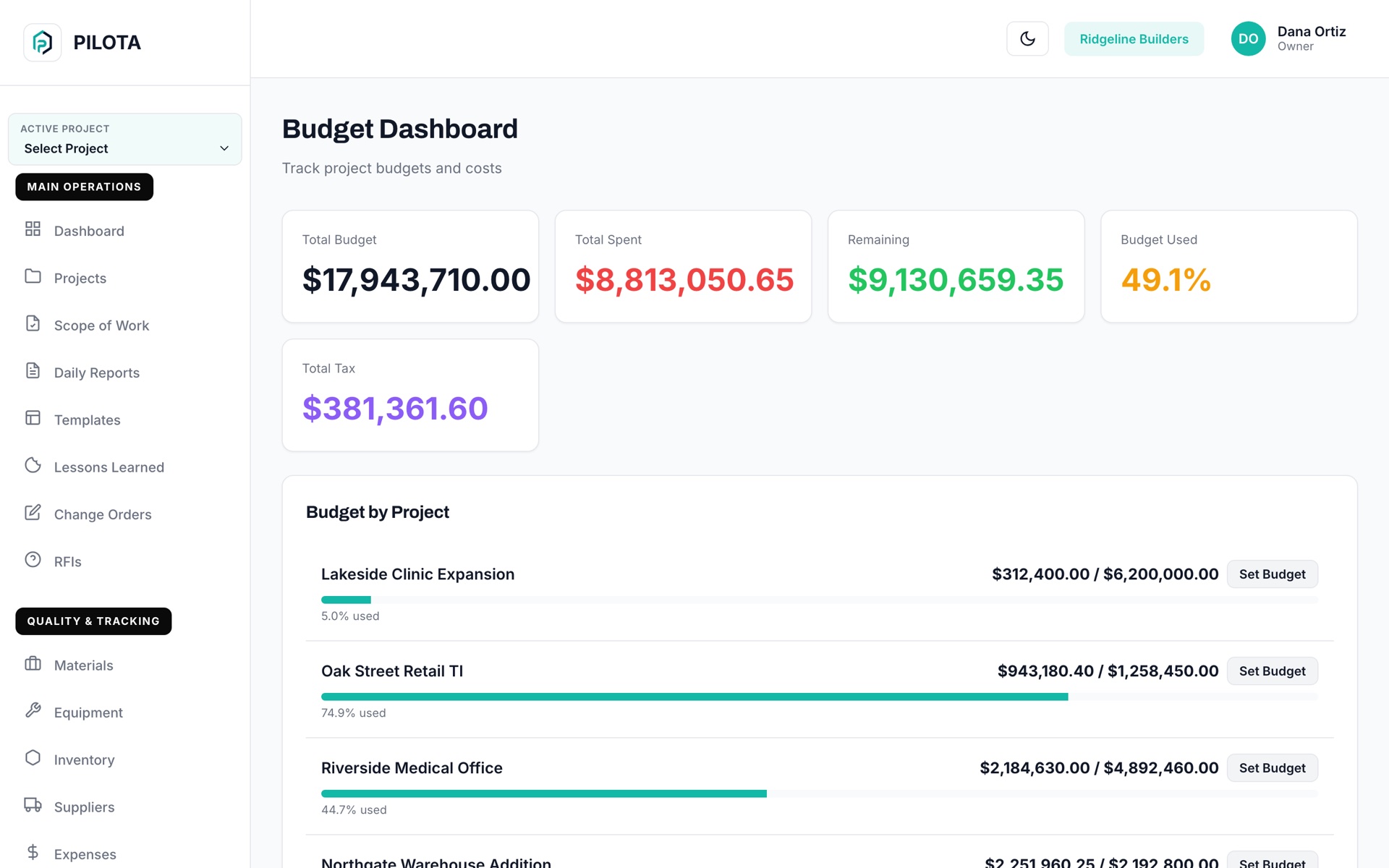
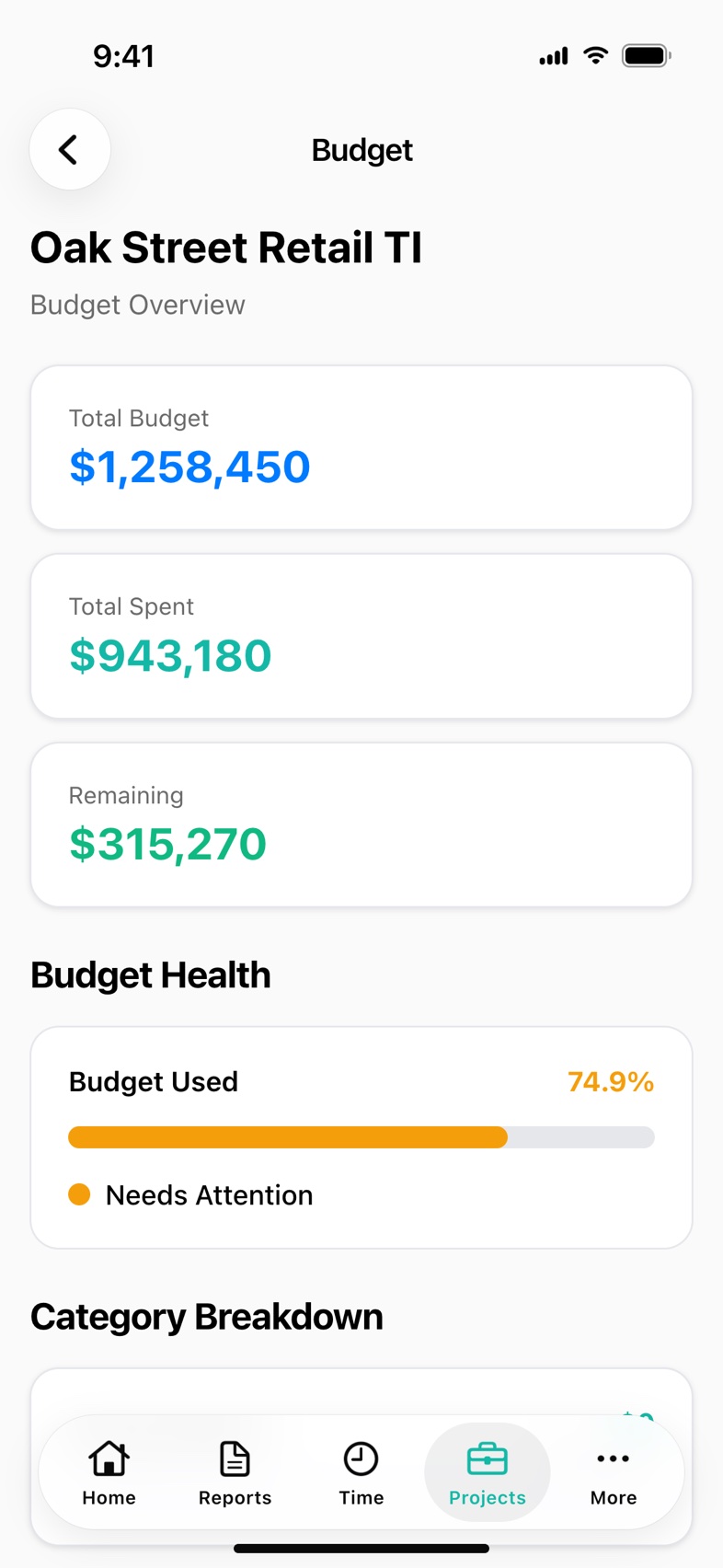
PILOTA job costing compares each project's budget with what has been spent on it. Spent is approved expenses, including tax, plus labor from time clock hours. The budget is the project budget plus every approved change order, and the app flags a job as On Track, Needs Attention, Critical or Over Budget.
When job cost is a spreadsheet someone updates at month end, the overrun is already spent before anyone sees it.
A signed change order raises the contract, but if nobody updates the budget, every job looks worse or better than it is.
Expenses sit in one place and timecards in another, so nobody can say what a job has actually cost so far.
Total budget, total spent, remaining and percent used for each project, on the phone and in the web portal.
Approved and reimbursed expenses, tax included, count as spent. Pending and rejected ones do not.
Crew hours logged on the time clock are added to spent, priced at a standard hourly rate.
When a change order is approved, its amount is added to that project's budget automatically.
Each project is marked On Track, Needs Attention, Critical or Over Budget based on how much of the budget is used.
Cost Analysis by Job Type compares average budget and spend across residential, commercial, industrial and other work.
Enter each project's base budget. Approved change orders are added on top automatically.
Crews clock in on the time clock and snap receipts as expenses against the project.
Approved expenses and logged hours roll into spent for that project.
Open the budget from the project, or the Budget Dashboard on the web, and act on any job marked Needs Attention or worse.
By the last pay application the money is gone. Seeing a job cross 70 percent of its budget while there is still work left gives you time to change crews, buy differently or price a change.
Contractor teams that rely on job costing & budgets day to day. Open one to see how it fits their work.
Job costing tracks what a project actually costs against its budget. In PILOTA, that means approved expenses and crew hours measured against the project budget plus approved change orders.
PILOTA counts approved and reimbursed expenses, including tax, plus hours from the time clock priced at a standard hourly rate. Pending and rejected expenses are not counted.
Yes. When a change order is approved in PILOTA, its amount is added to the project's budget, whether it was approved on the web, iOS, Android or automatically.
PILOTA marks a project On Track under 70 percent of budget used, Needs Attention from 70 to 90 percent, Critical from 90 to 100 percent, and Over Budget past 100 percent.
Yes. The PILOTA Budget Dashboard in the web portal shows total budget, spent, remaining, percent used and tax across your projects, with a bar for each project.
Create your account, pick a plan, and your team is up and running the same day.
Get started PILOTA