Write the scope, exclusions and timeline for each project in one place. Submit it, get it approved, and everyone works from the same version on web, iOS and Android.
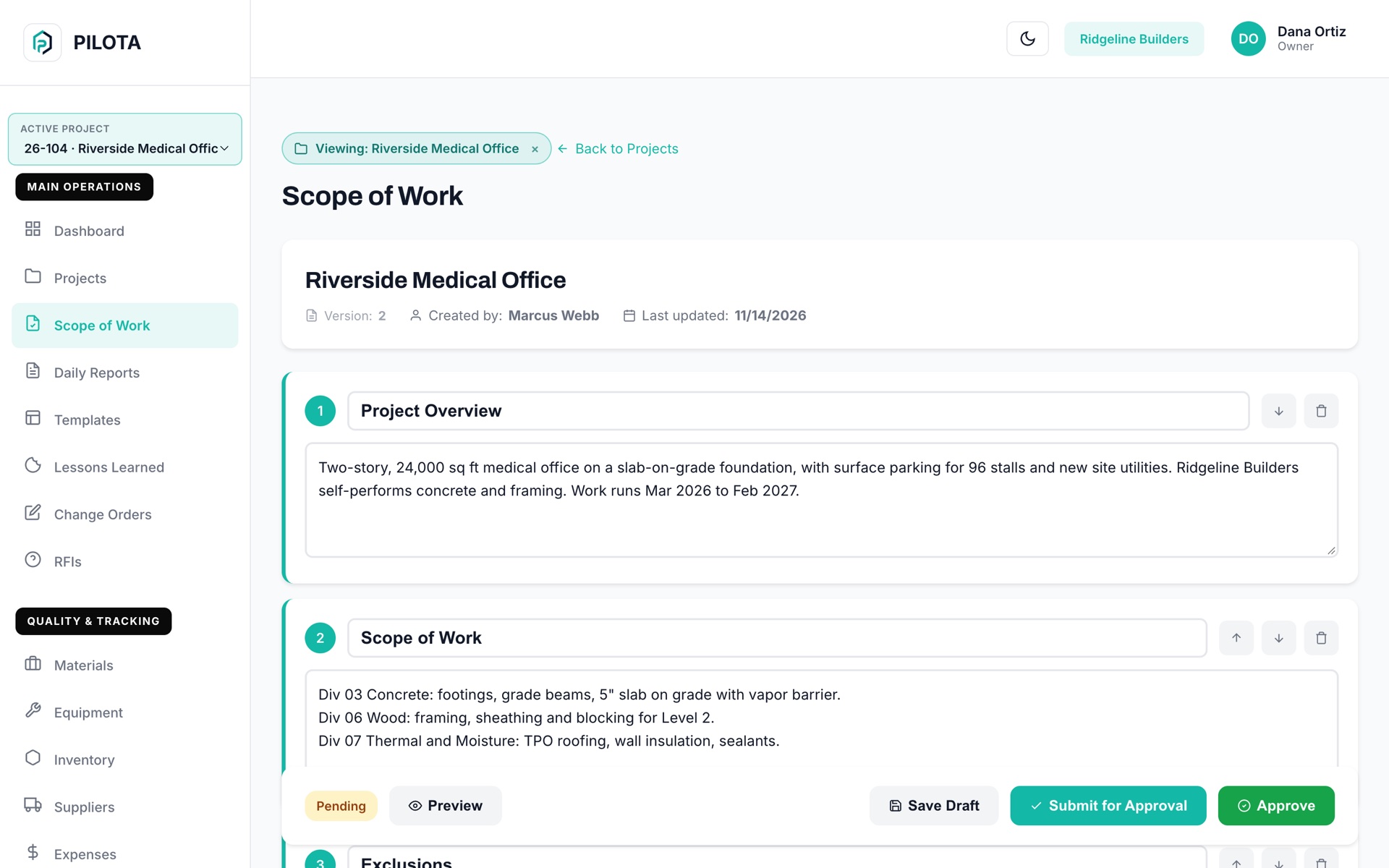
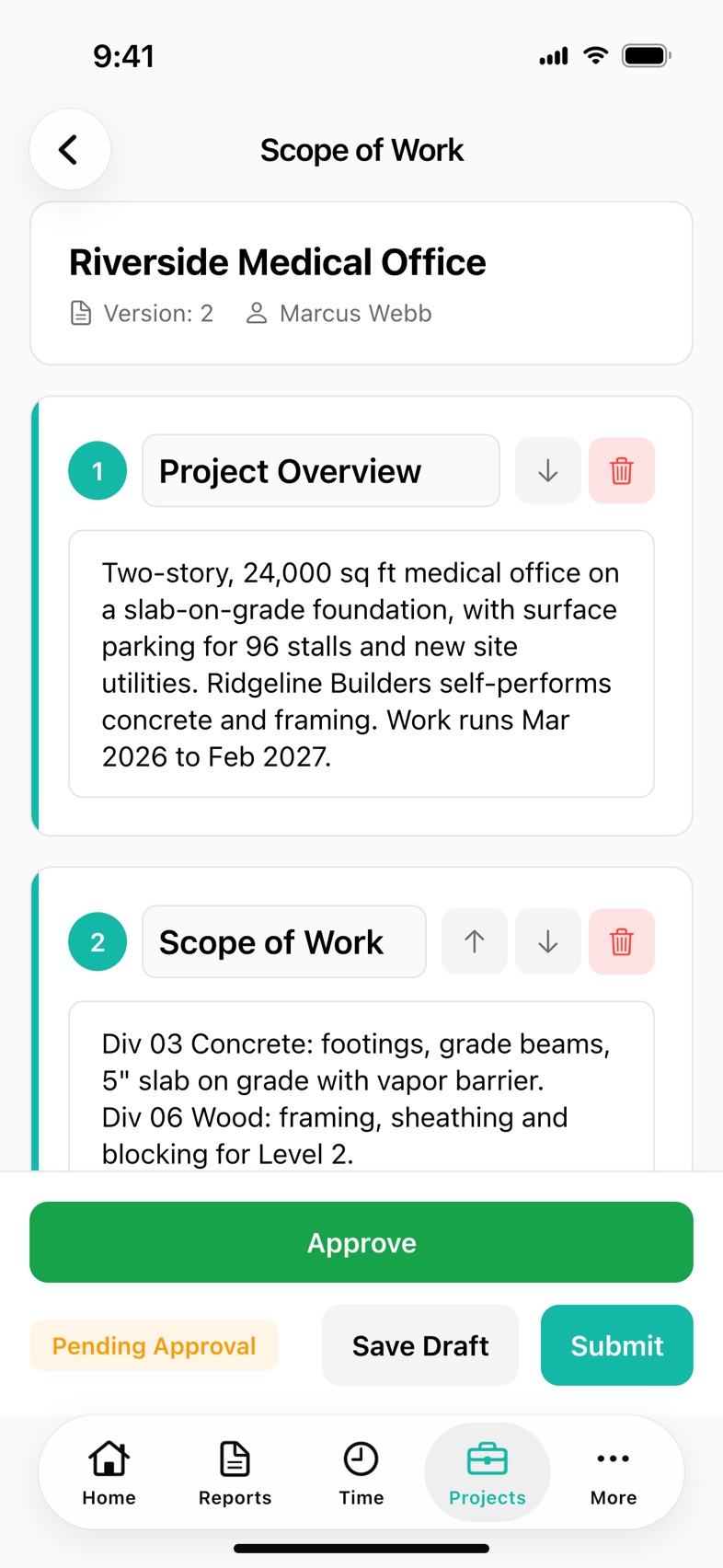
PILOTA Scope of Work is a sectioned scope document attached to each project. You write sections like Project Overview, Scope of Work, Exclusions and Timeline, save drafts, and submit the document for approval. Each scope shows its version number, who created it and its status: Draft, Pending Approval, Approved or Rejected.
The PM wrote it, the owner marked it up, the super has a copy from two weeks ago. When a question comes up in the field, there is no single document to point to.
If what you are not doing is only in someone's head, the client assumes it is in. That argument happens after the work is done, when you have the least room to push back.
A scope that was agreed on a phone call has no date, no approver and no version. When it changes, you cannot show what was approved before.
Open any project and tap Scope of Work. A new scope starts with four sections: Project Overview, Scope of Work, Exclusions and Timeline.
Add sections, rename them, move them up or down, or delete them. Write each one in plain text, organized however your team writes scopes, by CSI division, by trade or by phase.
Save Draft as often as you like. Submit sends it for approval and asks you to confirm first. Empty sections are left out, and any section with content needs a title.
Managers with project manage access see an Approve button on a pending scope in the web portal and the iOS app. The status badge shows Draft, Pending Approval, Approved or Rejected.
Every scope shows its version number and who created it. In the web portal, changing an approved scope starts a new version, so the approved text stays as history.
When a scope is submitted, owners, admins and managers are notified. When it is approved or rejected, the author is told. Tapping the notification opens that project's scope.
From the project, open Scope of Work. In the web portal, it is also in the sidebar and follows your active project.
Fill in the overview, the work by division or trade, the exclusions and the timeline. Reorder sections and save drafts as you go.
Tap Submit and confirm. The scope moves to Pending Approval and the company's owners, admins and managers get a notification.
A manager reviews and approves. The author is notified, and the approved version is what the team works from.
A scope with a version number, an approver and a status settles questions in the field before they turn into free work or a dispute.
A new scope starts with Project Overview, Scope of Work, Exclusions and Timeline. You can rename, reorder, add or delete sections to match how you write scopes.
Users with manage access to projects, such as owners and project managers, see an Approve button on a scope that is pending approval. Approval is available in the web portal and the iOS app.
Each scope shows a version number and who created it. In the web portal, changing a scope that was already approved or rejected creates a new version, so the earlier decided version is kept.
No. At least one section needs content, and every section with content needs a title. Empty sections are left out of the submitted scope.
Yes, in the web portal. Preview opens the scope as a print-friendly document with the project, version, author and last updated date, and you can print it or save it as a PDF.
No. Scope of Work is the written scope for the project. Costs are tracked separately in the project budget and change orders.
Create your account, pick a plan, and your team is up and running the same day.
Get started PILOTA